TapTrack User Reference
Check-In/Check-Out Operations
This guide introduces the Base Module and focuses on the check-in and check-out processes.
Modes
Check-In Mode
Check-In mode offers two options:
- Scan QR
- Manual Lookup
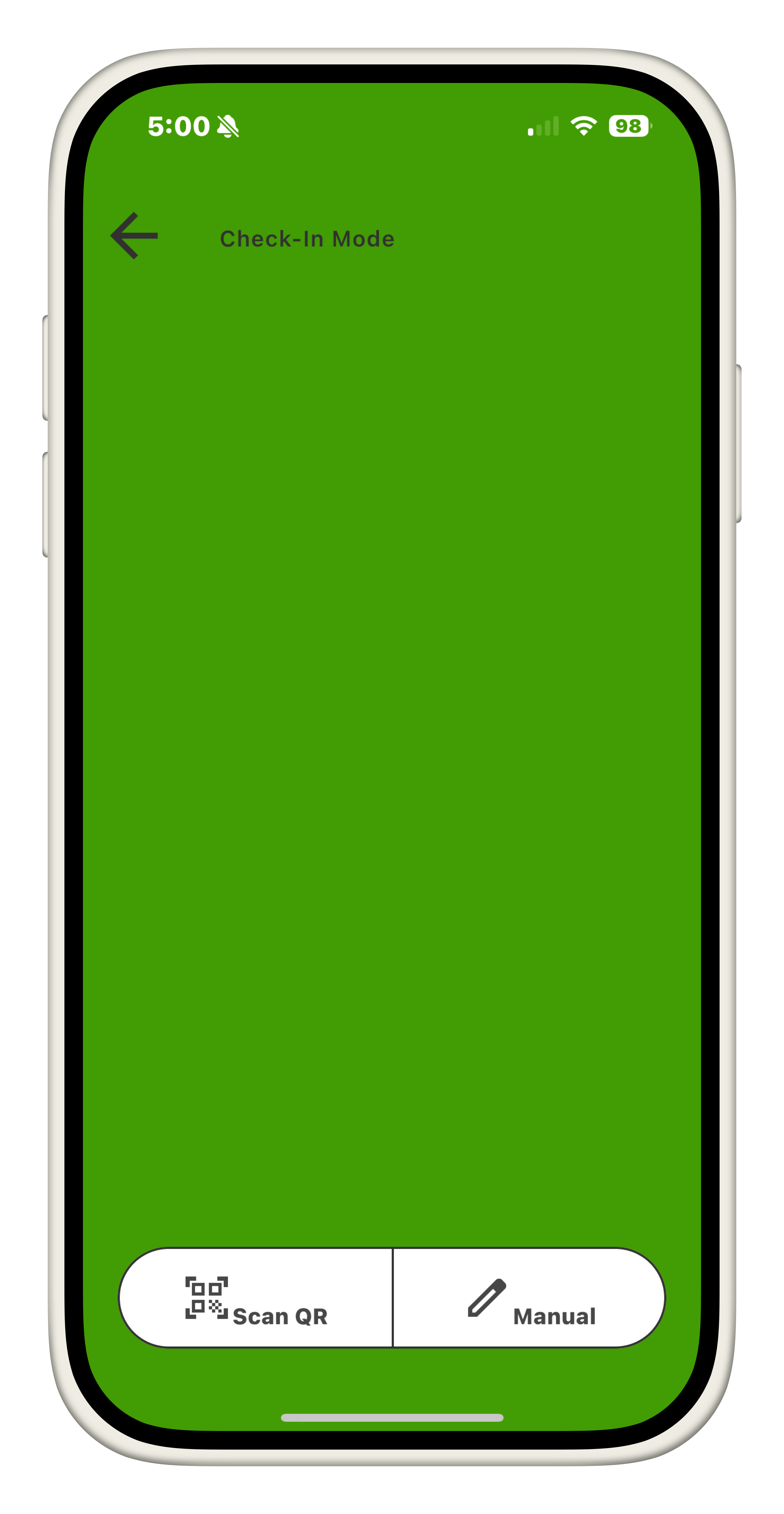
Scan QR
This option activates a QR code scanner within the application. Only QR codes provided by FareHarbor are supported, and will only pull bookings that are valid for the current date.
FareHarbor QR Codes
FareHarbor generates a QR code/URL for each rental item linked to a booking. These QR codes are emailed to customers by FareHarbor near the booking date. Customers can present these QR codes to staff during Check-In to quickly retrieve booking details without a manual search.
Manual Lookup
There is also an option for locating booking records manually. The following search parameters:
- Organizer name
- Phone number on file
The manual lookup page also consists of several filter options to further refine searches:
- Status
- Not Checked In
- Checked In
- Returned
- Date
- Today
- Tomorrow
- Custom (Not yet supported)
- Type
- 4 person raft
- 6 person raft
- 8 person raft
- 10 person raft
- 12 person raft
- BowYak
- Kayak
There are also default filters applied automatically depending on which mode is selected
- Check-In Mode:
- Status:
Not Checked In - Date:
Today
- Status:
- Check-Out Mode:
- Status:
Checked In - Date:
Today
- Status:
Check-Out Mode
The Check-Out mode consists of two additonal options. Booking records can be discovered through:
- NFC Scan
- Manual Lookup
NFC
NFC allows for quick lookup of booking records using an NFC tag located on a raft. Each NFC tag used within Lazy Day contains a 128-bit unique identifier that gets stored within the booking record information during the Check-In process. This identifier allows us to keep track of which rafts the customer was sent out with as well as providing us a quick method of retrieving their booking information at the end point. In order to scan a raft’s NFC tag, the user must first initiate the NFC scan within the application, then tap the device to the NFC tag to retrieve the booking. The application will display the most recent booking associated with the NFC identifier if it has been used in the last two days.
Customer Warnings
Within the Check-In mode, if the user is checking in a booking with the following conditions, additional customer conformation is needed before the booking can be checked-in:
- Booking contains at least one bowyak
- Storm warning (not yet supported)
If one or more of these conditions is valid for the booking, the application will ask for further confirmation from the customer. The customer must enter “I Agree” in each required textfield on this page before the check-in process can continue.
Options
Within each booking record, some additional information can be provided or gained based on user contribution.
Flags
Flags can be assigned to bookings to provide some discrete information on the state of the booking to other employees, as well as maintaining it in booking record history if this information may be relevant in the future. Currently the following flags are supported:
- Padding
- This flag is intended to be activated if the user checking in the booking suspects the group may still have troubles with paddling
- Intoxication
- This flag is intended to be activated if the user checking the booking in or out has any issues with the group due to intoxication
Booking Notes
Each booking can contain its own set of notes. Users with required permissions may modify this field as needed.
Override
The override option provides additional redundancy. If there is a large corporate booking, or there is an issue registering rafts through the normal workflow, the override option can be used by those with the required permissions to bypass all raft counters and potential customer acknowledgment warnings. This approach however loses some data in the process, as raft numbers/NFC ID’s will not be logged to the booking record, which also results in the inability to look up the booking record using NFC.
NFC
Each raft is stored in a table called RaftMap. This table will store the raft number, raft type, and NFC UUID associated with the raft.
| Raft Number | Raft Type | NFC_UUID |
|---|---|---|
| 22 | 6 person raft | 5353c750-1dba-45ff-ba24-2b7a4360c7f1 |
| 65 | 4 person raft | 79f3e9ad-cd4e-4781-9457-424cd71daee2 |
| 78 | 8 person raft | 74416c47-84f4-4e67-a408-dd2c23bf7238 |
Using this model, we can assign a hard-coded NFC_UUID to each raft. During the check-in process, the NFC_UUID stored on the NFC tag when checking a booking in, will be stored as a list of all rafts sent out in the booking, and update the booking record with these values. These values can also be used for raft history lookup within the Repair Module.
Manual
These values can also be translated, for example we can look up a raft record knowing only the raft number, and be able to retrieve both the Raft Type as well as the NFC_UUID associated with the raft. This means that if there is an issue with a rafts NFC tag, the user can select another option to enter rafts to assign to a booking manually through the use of the RaftNumber. Once the user inputs raft numbers into this dialog, the application will attempt to resolve the Raft Numbers to their associated NFC UUID. If the rafts are valid and in the system, the application will use these values in place of the same NFC_UUID that would be provided by scanning the raft directly, and will proceed as normal. However, if there is a raft number that does not exist in the RaftMap; the application will give the option for the user to either go back and fix the raft numbers listed, or to continue anyways. If the user continues anyways, it’s NFC_UUID will not be stored within the booking information, but the RaftNumber’s will still be added to the booking information, and prioritized in the counting logic to prevent issues. This means that the application can still function if the rafts are non existant in the RaftMap table, even if the NFC tag is broken or not configured.